
For EPP/EDR
https://techzone.bitdefender.com/en/tech-papers/gravityzone-best-practices.html
Agent
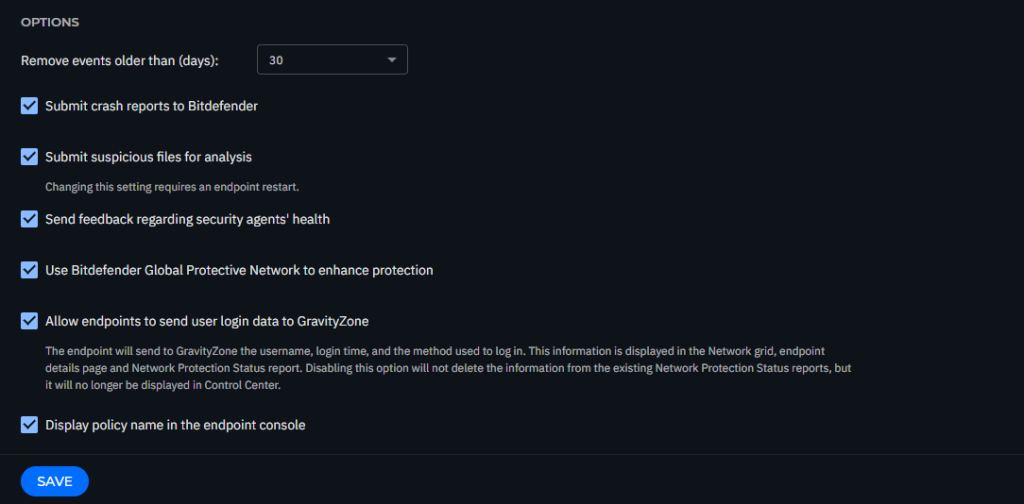
General settings within the policy allow you to manage user interface display options, password protection, proxy settings, power user settings, communication options, and update preferences for the selected endpoints.
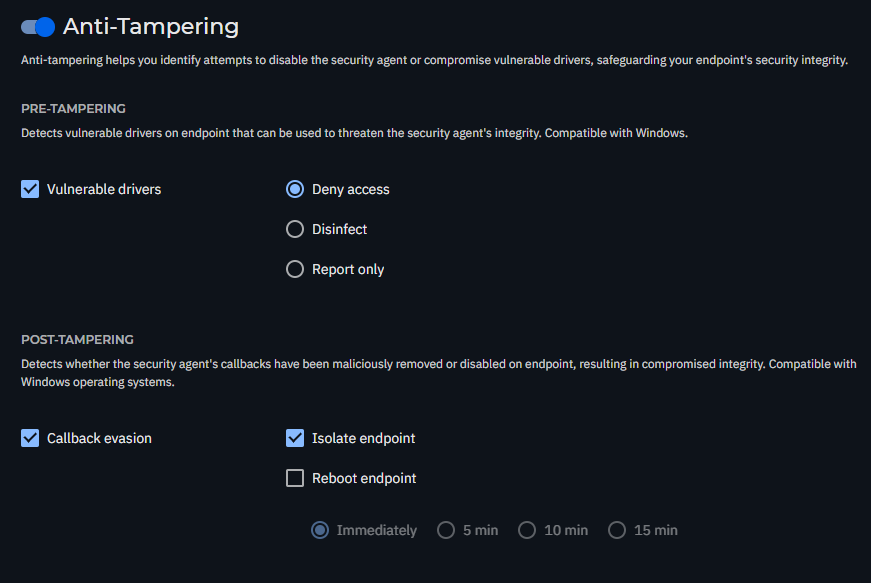
Set uninstall password: This prevents users with administrative rights from unauthorized uninstalling the BEST agent. This uninstall password, however, won’t stop advanced threat actors, who use more advanced tampering techniques. To configure Anti-Tampering protection, navigate here.

Allow endpoints to send user login data to GravityZone: Enable this option to see the logged-in user on their machines within the Network section.
Update
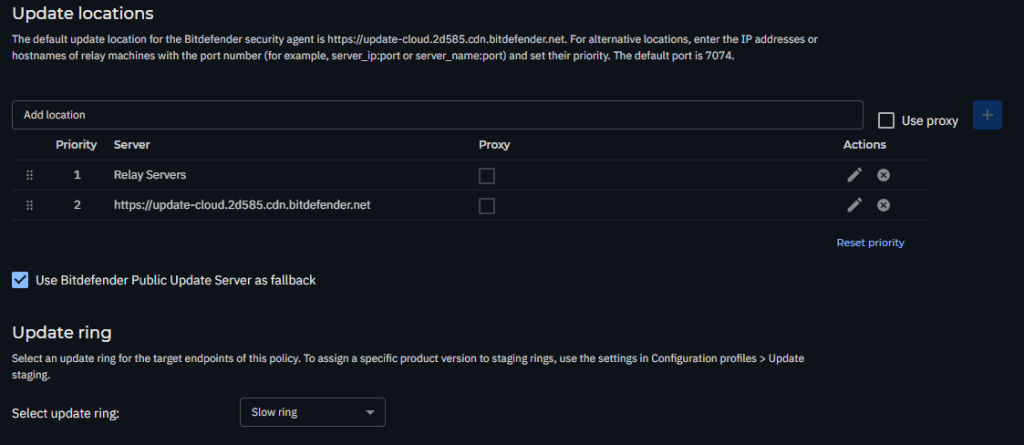
Navigate to the Agent > Update section to configure the BEST agent and security content update settings.
We recommend configuring the following:
- Product Update: Set a one-hour update interval. For non-persistent VDIs, disable product updates to avoid frequent reinstalls.
- Security Content Update: Set a one-hour update interval to ensure endpoints are always protected with the latest security definitions.
- Update Ring: The update ring should be configured to use the Slow ring for stable, well-tested updates. However, for larger organizations that have a staging or testing environment, the Fast ring can be used to identify any potential issues with new updates before they are deployed broadly across your production endpoints.

Antimalware
The Antimalware module is the foundation of your BEST, providing a multi-layered defense that proactively protects against a wide range of threats, from traditional malware to advanced, fileless attacks and ransomware. This section details the configuration for key settings, including On-Access, On-Execute, On-Demand, Anti-Tampering, HyperDetect, and Advanced Anti-Exploit.
On-Access Scanning
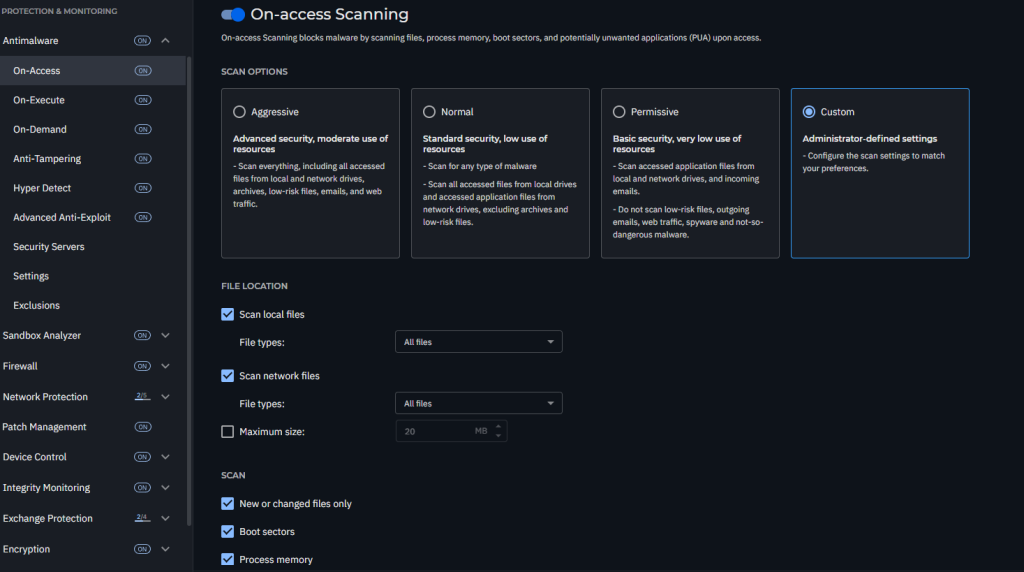
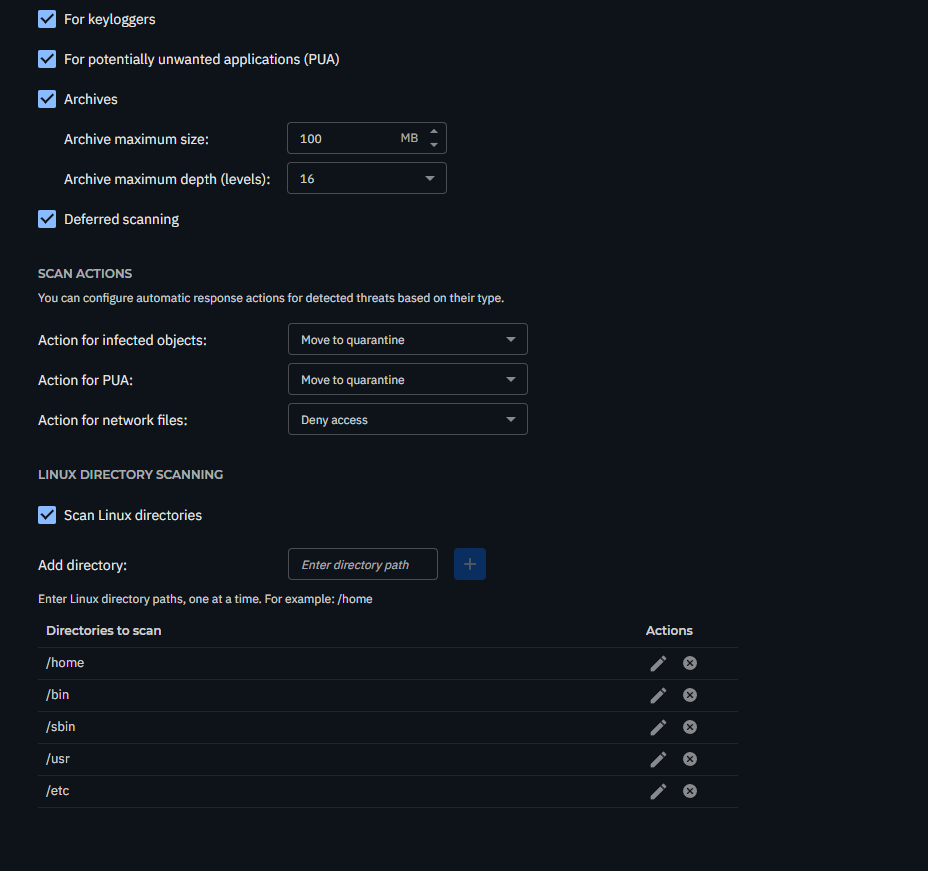
Malware protection prevents new malware threats from entering the system by scanning local and network files when they are accessed (opened, moved, copied, or executed). Navigate to Antimalware > On-Access to configure antimalware protection.
On-Execute Scanning
On-Execute Scanning protects against malicious processes during their execution stage. Navigate to Antimalware > On-Execute to configure this layer of protection.
Advanced Threat Control (ATC)
Sensitivity: Set Normal scan sensitivity for workstations and Aggressive for servers.

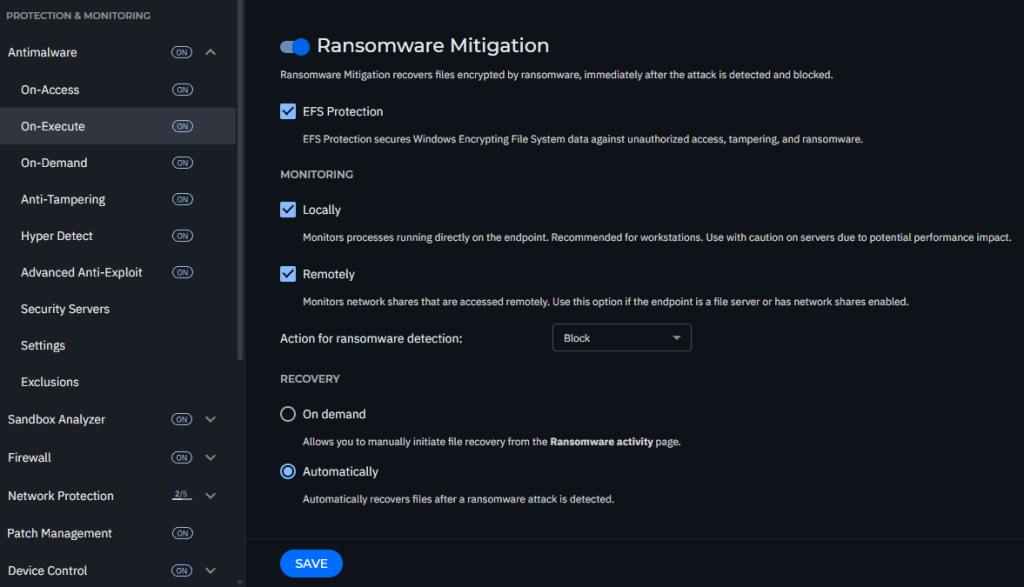
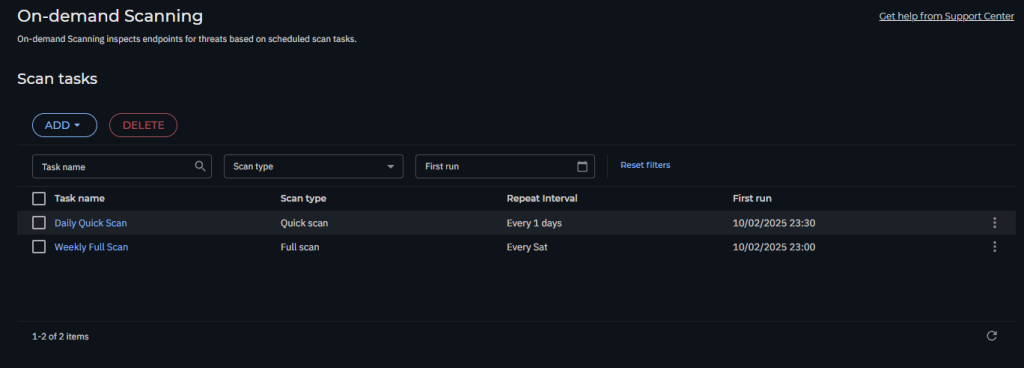
On-Demand Scanning
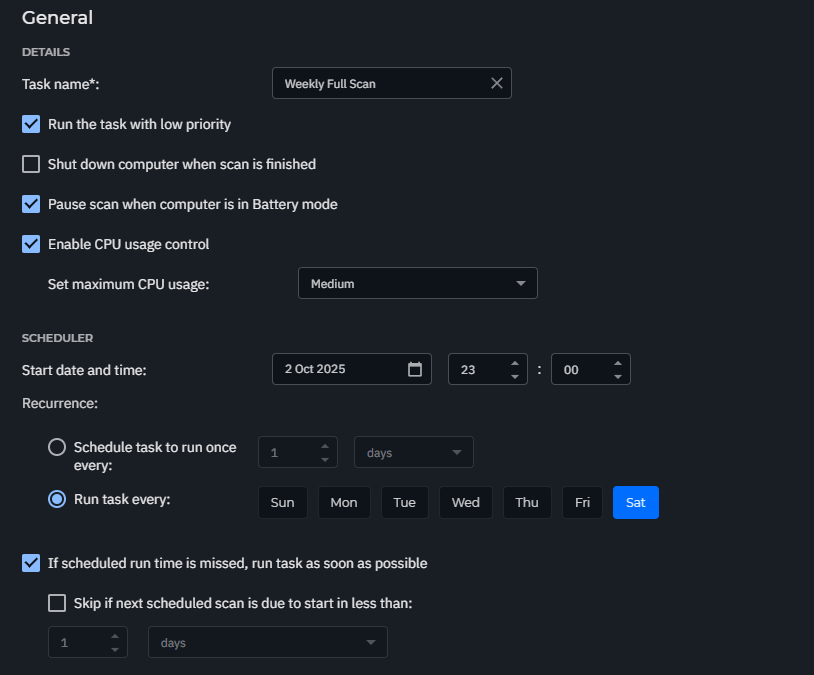
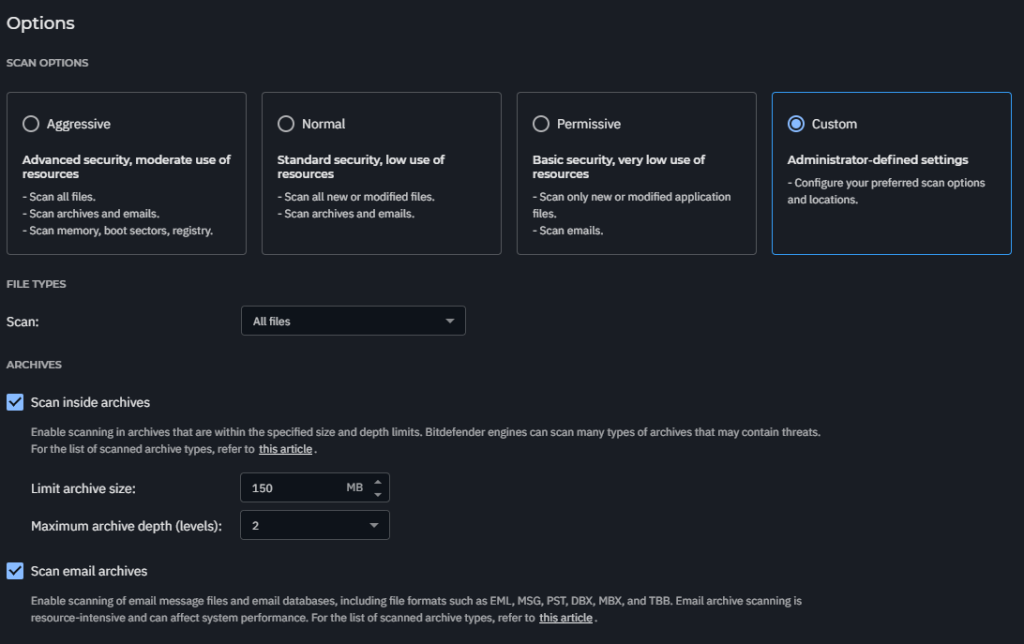
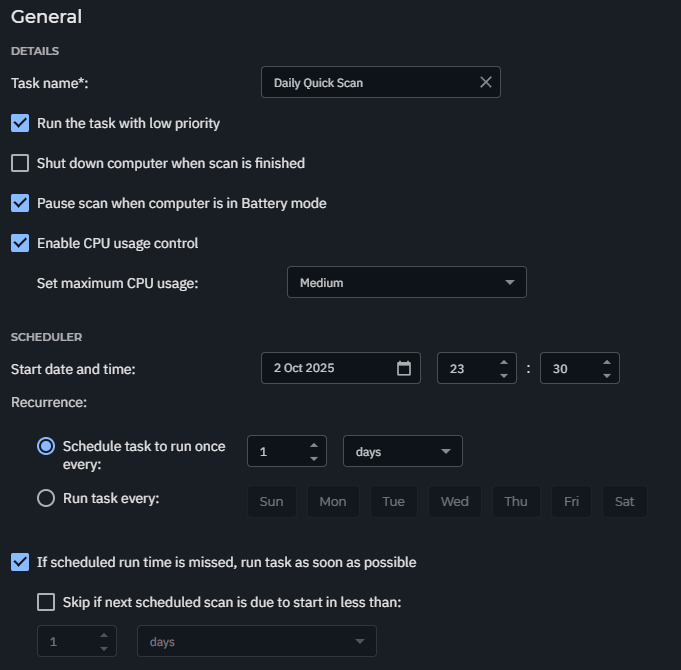
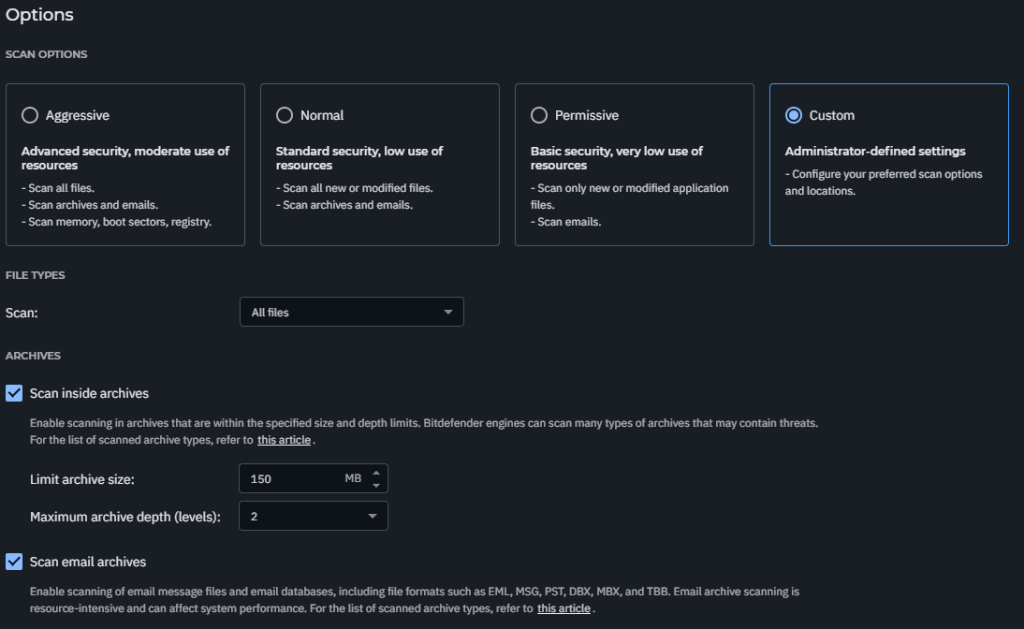
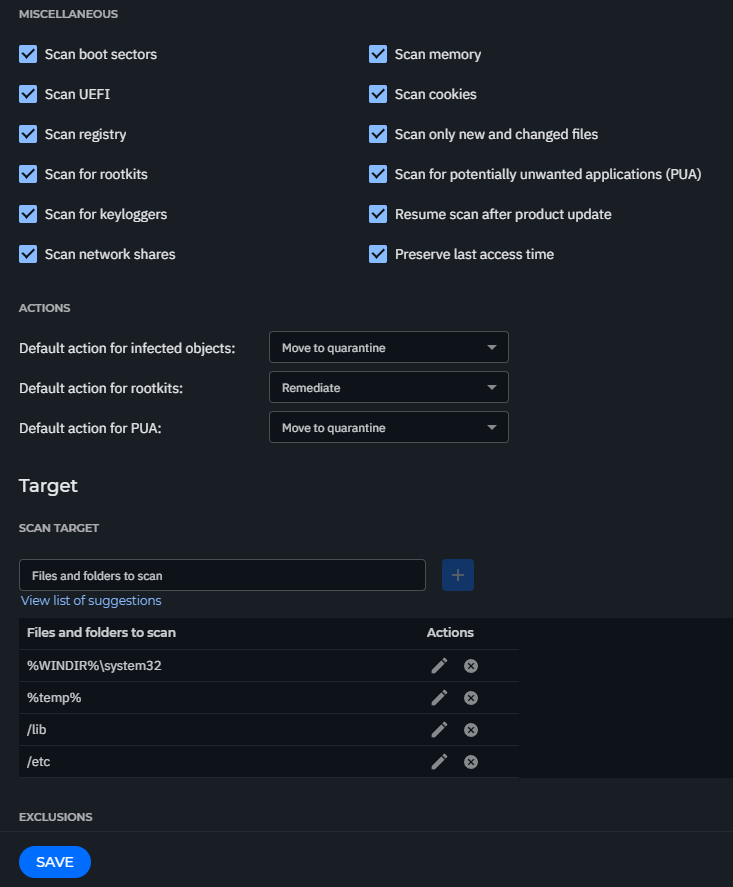
We recommend two types of regular scanning: a weekly full scan and a daily quick scan.
Weekly Full Scan
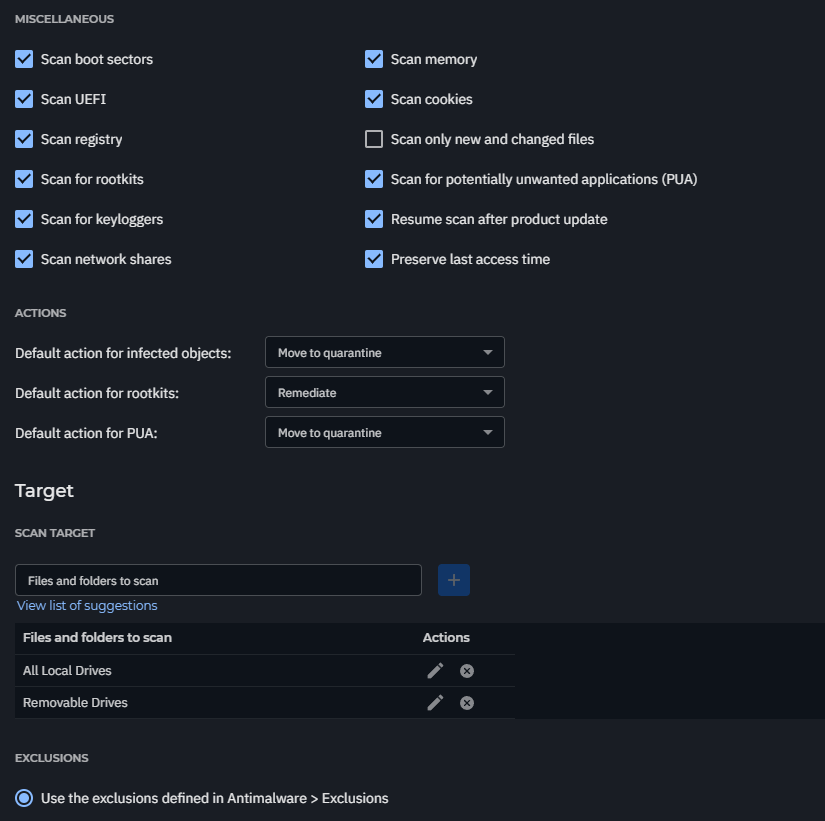
Daily Quick Scan
Anti-Tampering
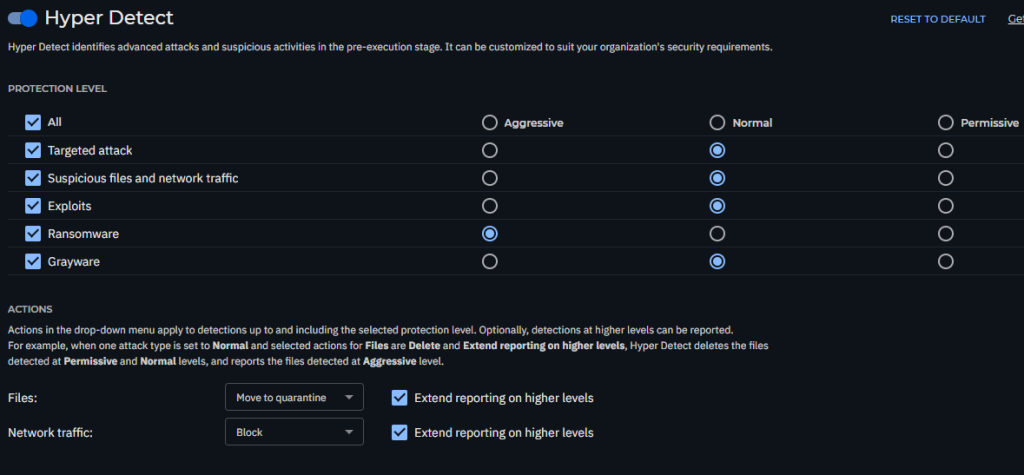
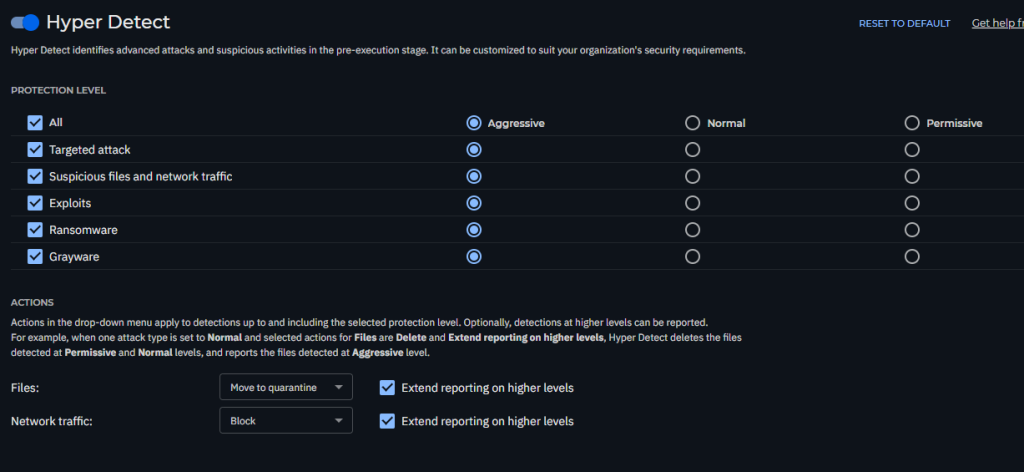
Hyper Detect
For client
For Server
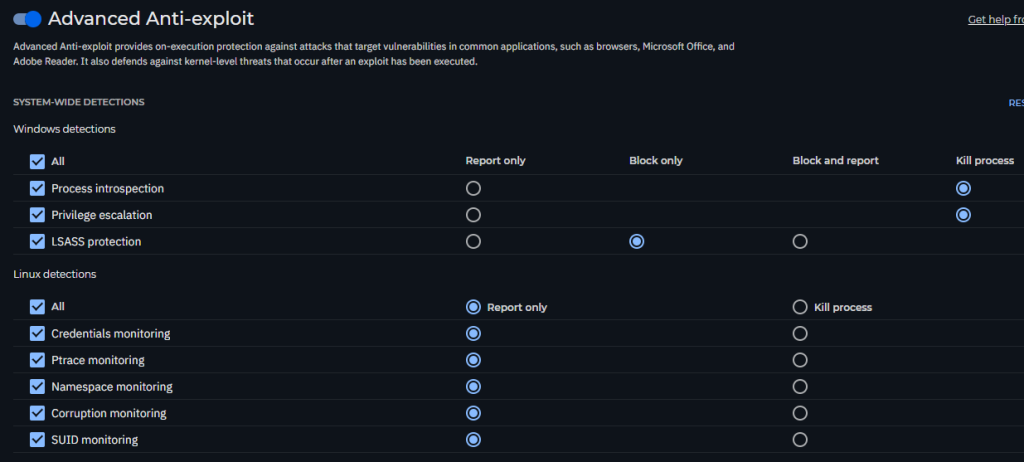
Advanced Anti-Exploit
Settings
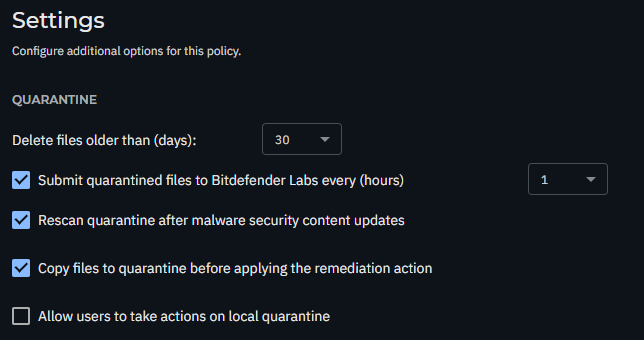
Exclusions
Recommended vendor and product exclusions – Enable this option to use default exclusions provided by Bitdefender for compatibility with common third-party software.

Sandbox Analyzer
Analysis mode: Blocking: Endpoint Users will have no access to the file until the analysis result is returned to the endpoint from the Sandbox Analyzer.
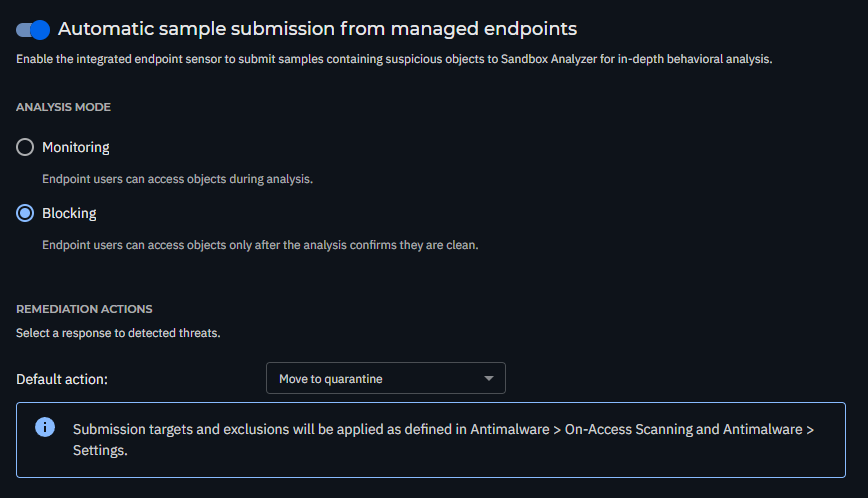
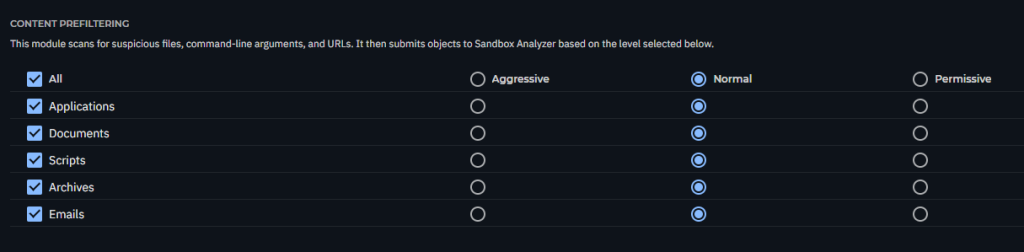
* The Bitdefender MDR Cybersecurity Breach Warranty requires Content Prefiltering settings to be configured in Aggressive mode.
Firewall
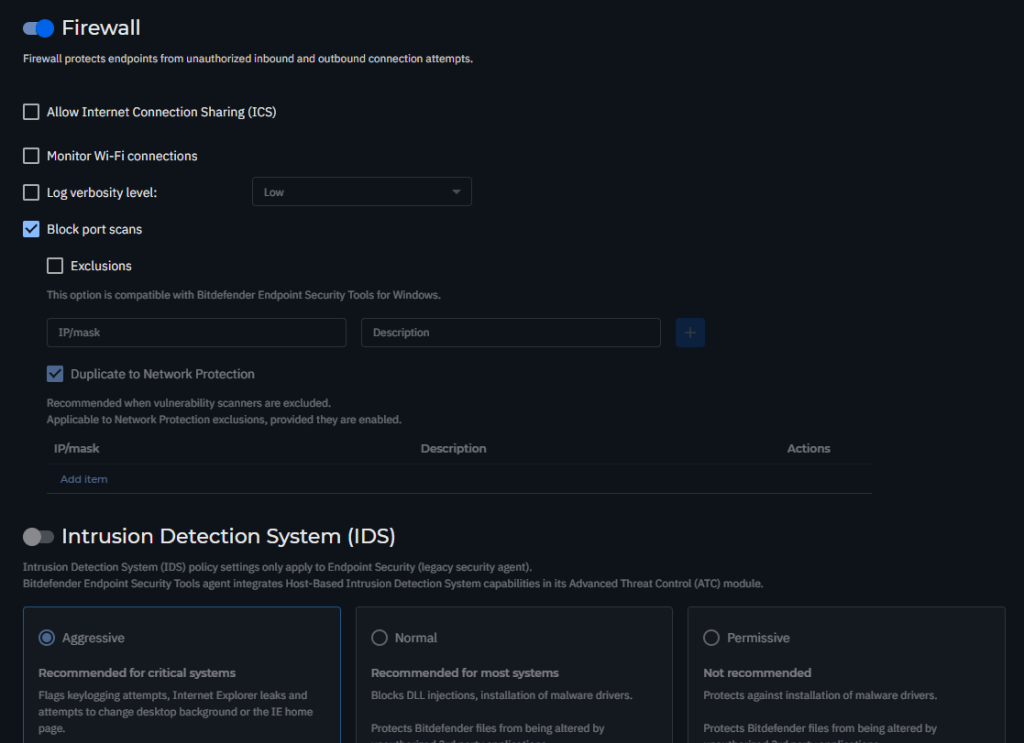
Settings
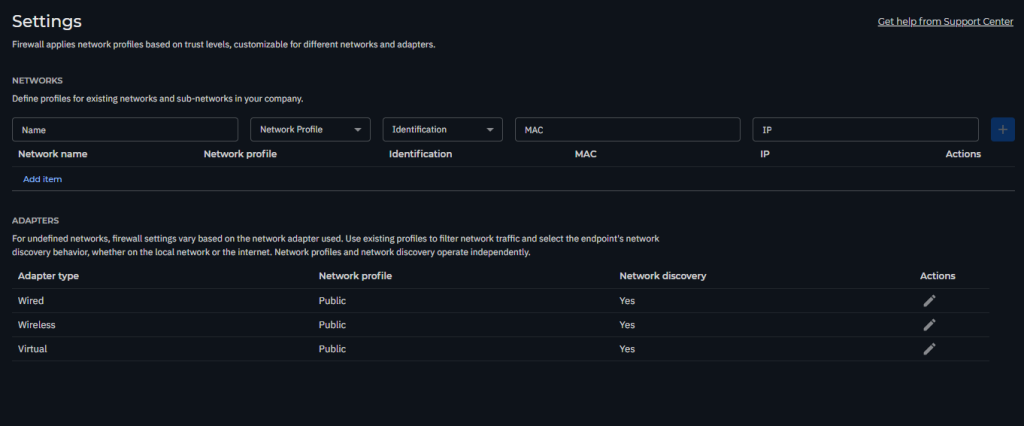
The firewall’s filtering policy depends on the trust level. To apply different profiles to network segments within your company, we recommend applying network profiles to your company’s managed networks in the Networks table:
- Trusted: Disables the firewall for respective adapters. The traffic is allowed and not filtered.
- Home/Office: Allows all traffic to and from computers in the local network while the other traffic is being filtered.
- Public: All traffic is filtered.
- Untrusted: Completely blocks network and Internet traffic through the respective adapters.
If a network that is not defined is detected, the Bitdefender security agent identifies the network adapter type and applies a corresponding profile to the connection.
Rules
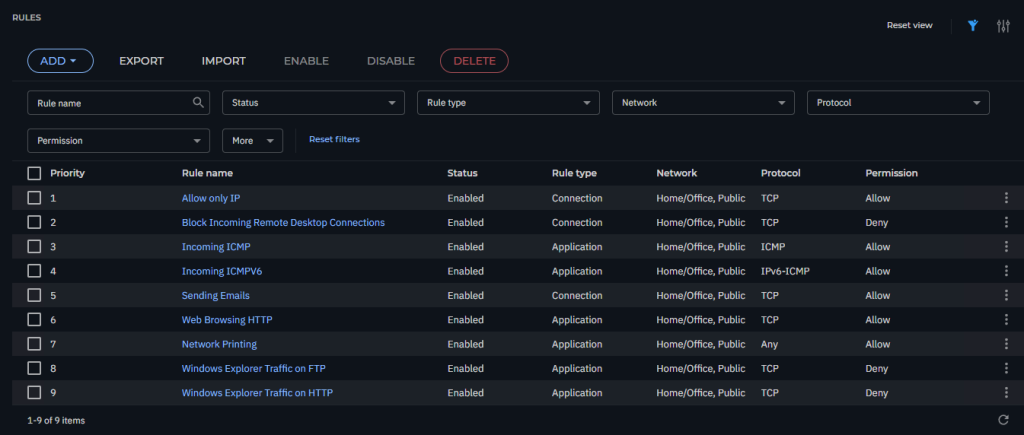
If you are using Network Printing > Please Enabled and Set Permission as Allow (Rules 7)
Network Protection
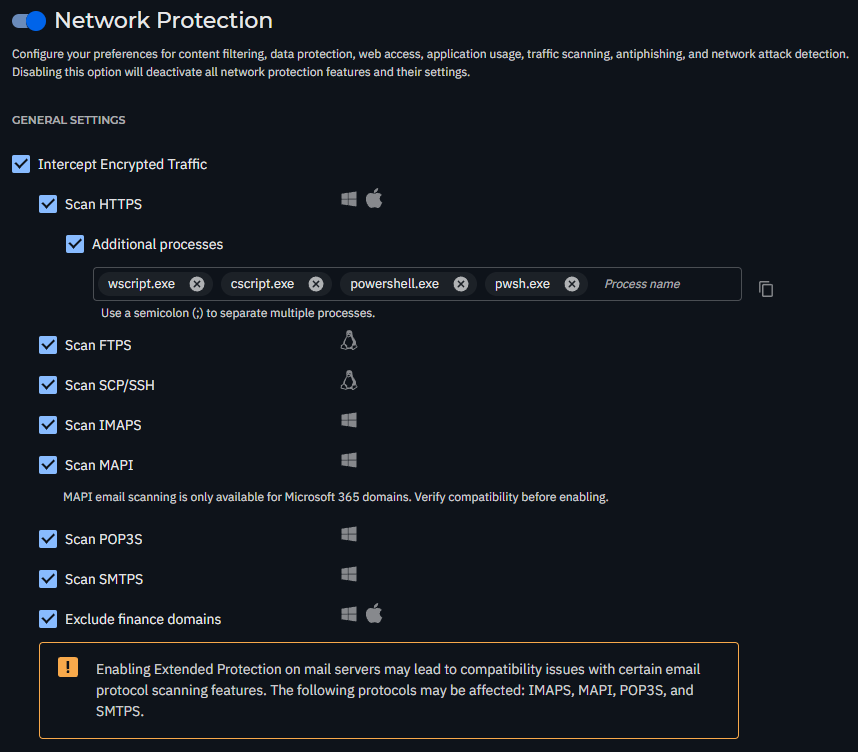
Additional Processes: Add the following processes for scanning: wscript.exe; cscript.exe; powershell.exe; pwsh.exe
Web Protection

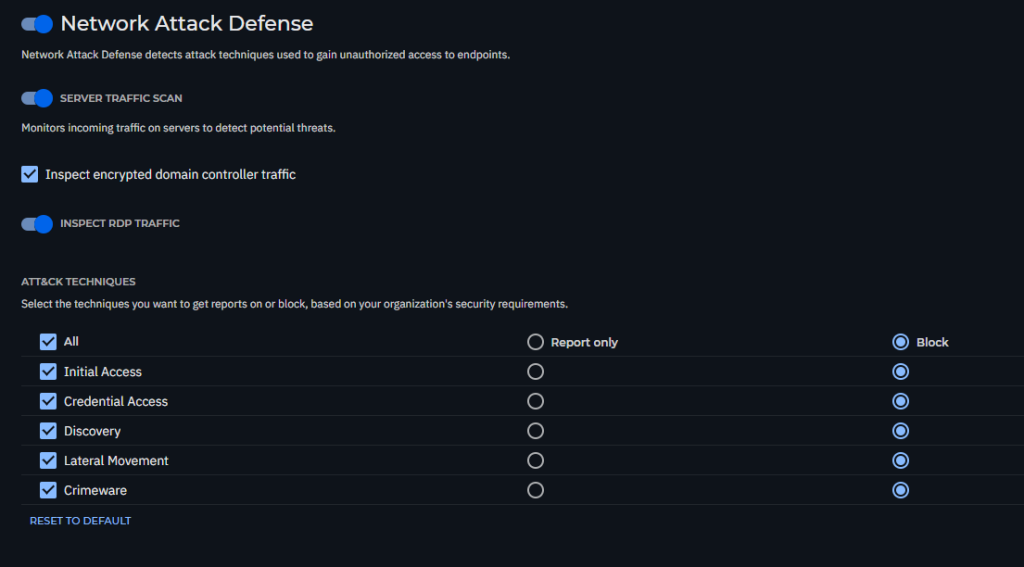
Network Attack Defense
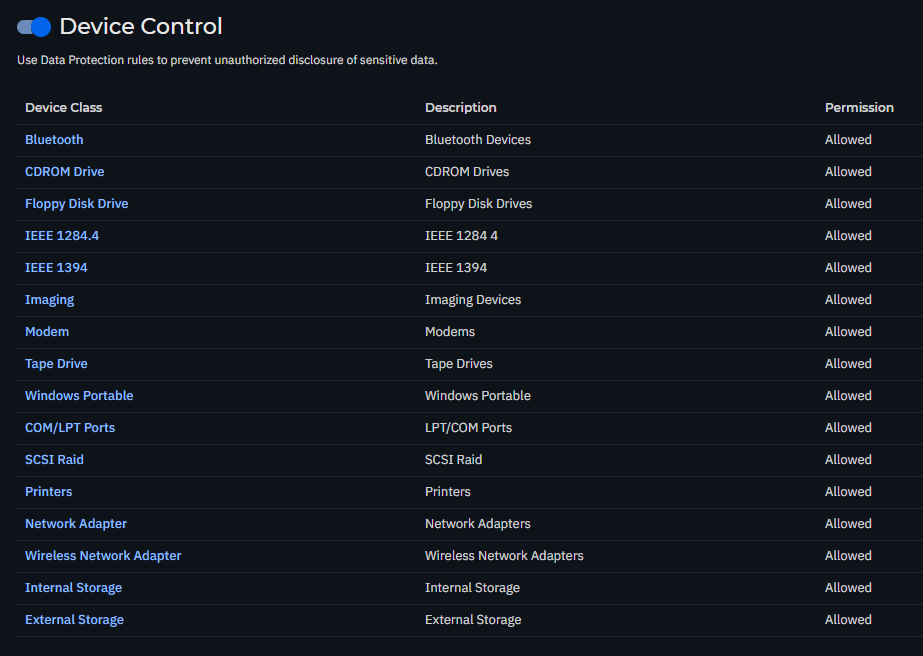
Device Control
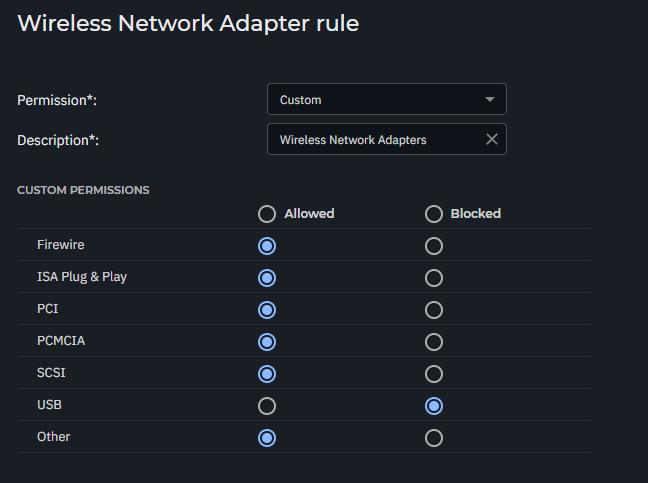
if want to block USB Wifi
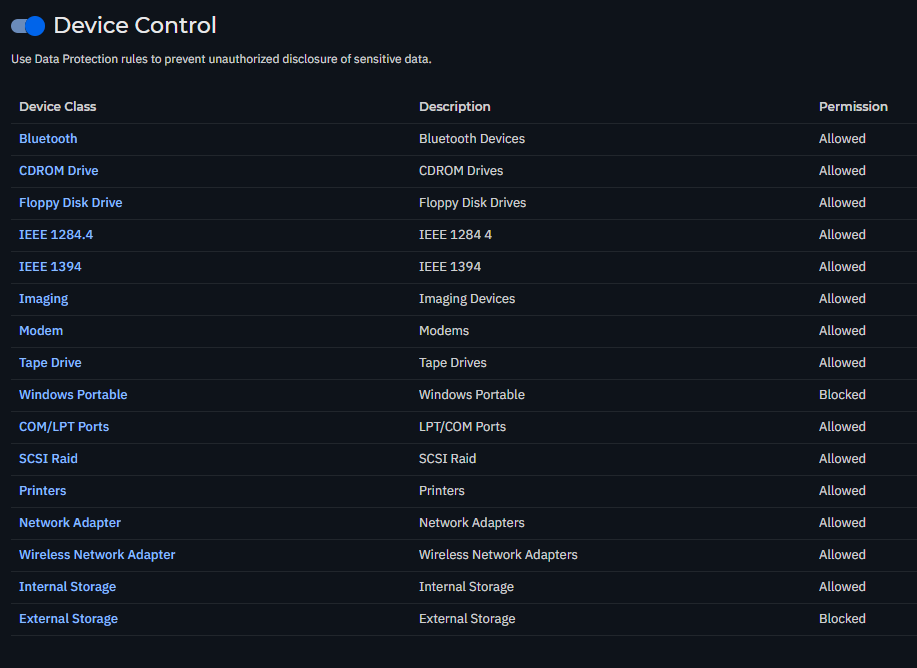
if want to block External Storage
Set Windows Portable and External Storage as Block
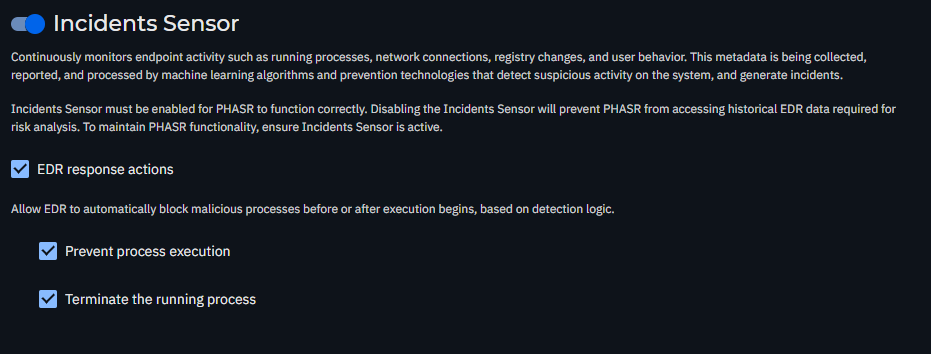
Incidents Sensor
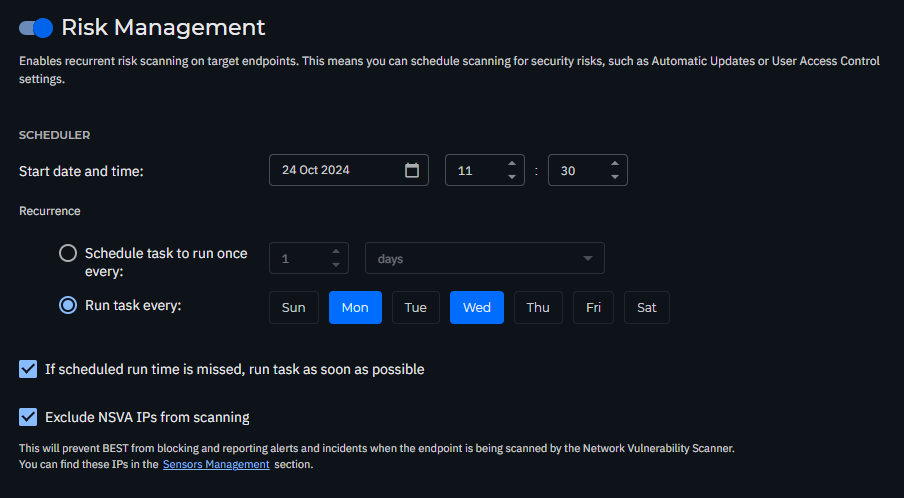
Risk Management
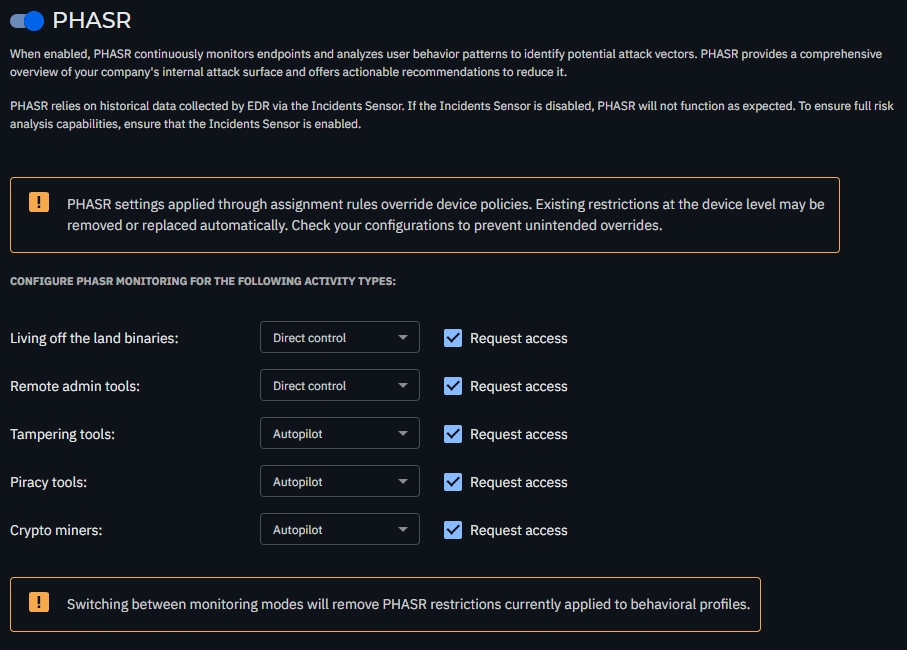
PHASR
Live Search

For MDR